How to Add Closed Captions
Closed captions are text transcriptions of spoken content in video and audio files. They improve accessibility for users with hearing disabilities and enable searchable transcripts within VIDIZMO, making it 508 Compliant.
Prerequisites
Before you begin, ensure you:
- Belong to a group with Upload and Manage My Content permission enabled (such as Contributor group)
- Have a video or audio file uploaded to VIDIZMO
- Have a caption file in WebVTT (.vtt) format (for manual upload)
For uploading media, see How to Upload Media.
Upload Closed Captions
- In VIDIZMO, go to Admin > Media Manager.
- Select the media item and open Settings.
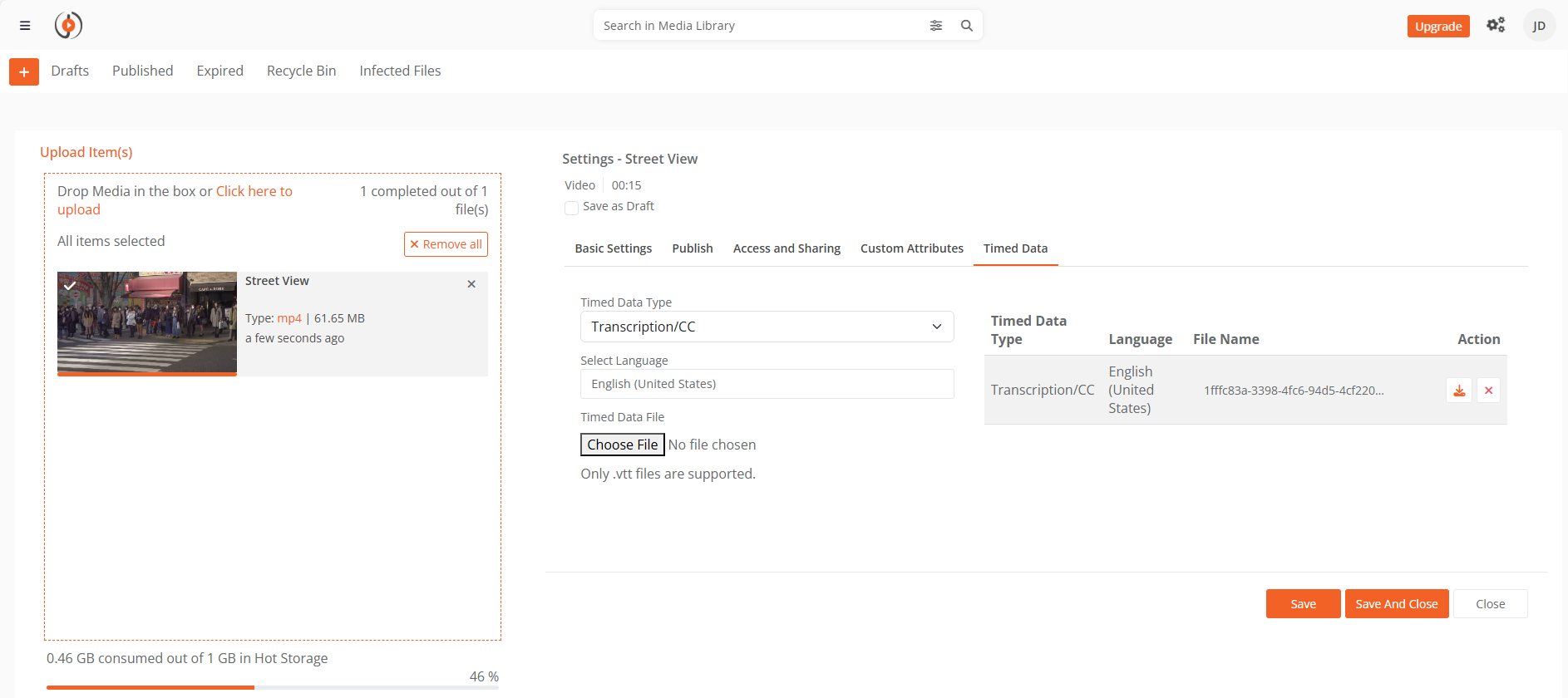
- Select the Timed Data tab.
- From Timed Data Type, select Closed Caption.
- Select Choose File and upload your VTT file.
- From Select Language, choose the caption language.
- Select Save and Close.
Display Transcription Pane
To show the searchable transcript beside the video player:
- In Media Settings, select the Publish tab.
- Enable the Display All Insights checkbox.
- Select Save and Close.
Once processing completes, the transcription pane appears on the playback page. Users can search within the transcript and select text to jump to that position in the video.
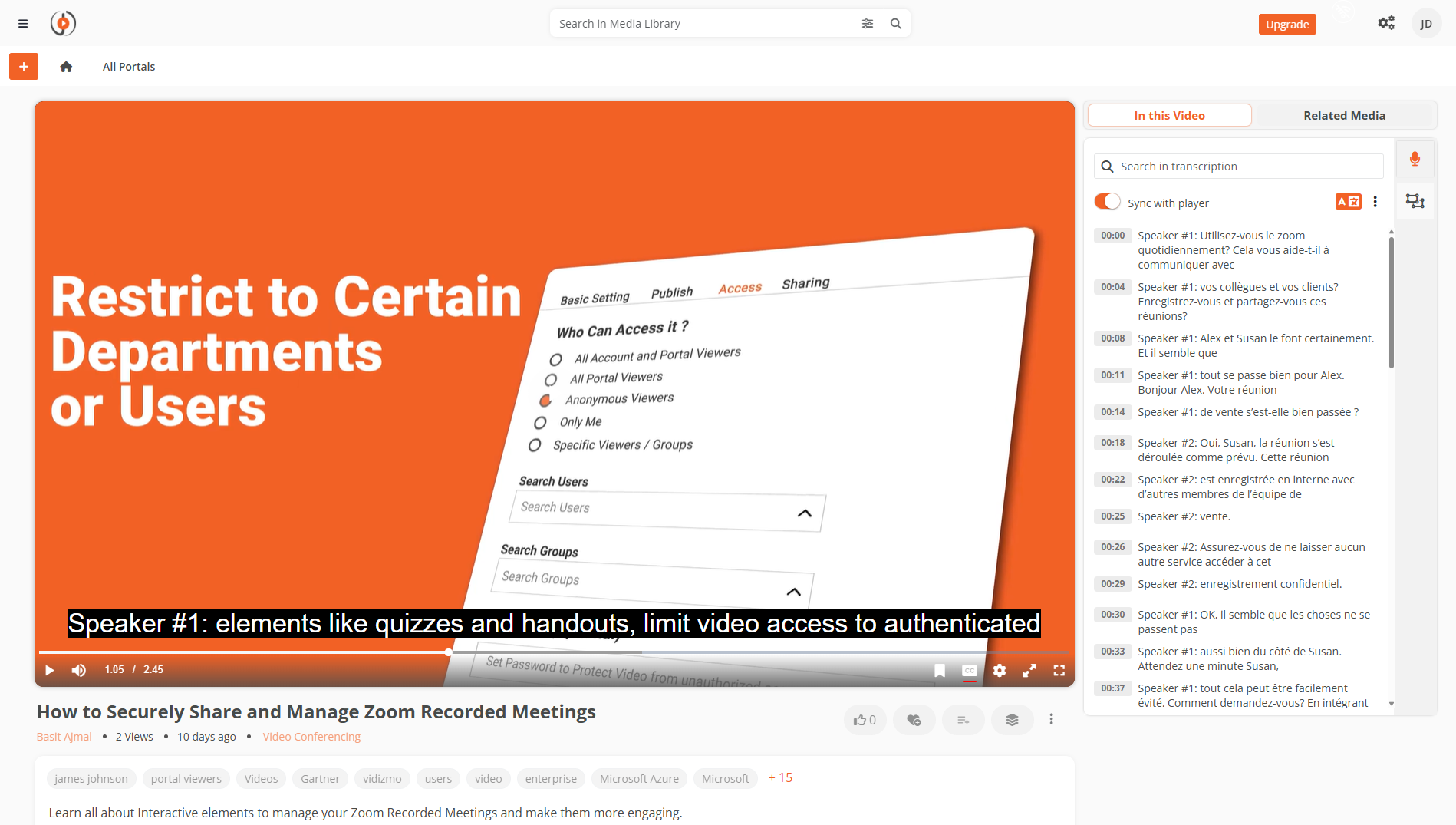
NOTE: The transcription pane only appears when Display All Insights is enabled and a closed caption file is associated with the media.
Re-Upload Closed Captions
To replace an existing caption file:
- In Media Manager, select the media item and open Settings.
- Select the Timed Data tab.
- Select x next to the existing caption file to remove it.
- Upload the new VTT file using Choose File.
- Select Save and Close.
Enable Auto-Generated Captions
VIDIZMO can automatically generate closed captions through content processing apps configured by your portal administrator. The transcription provider used depends on which content processing app is enabled for your portal.
For detailed steps on generating transcriptions, see: